The best AI note-taking tools for meetings depend on how your team captures conversations and uses the notes afterward. Consider Otter for live transcripts and searchable records, Fireflies
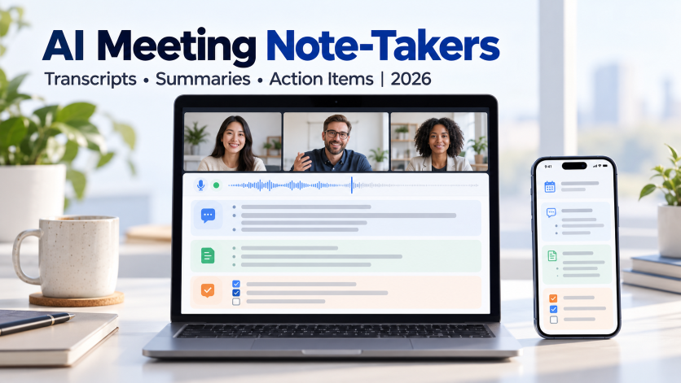
The best AI note-taking tools for meetings depend on how your team captures conversations and uses the notes afterward. Consider Otter for live transcripts and searchable records, Fireflies for connected team workflows, Fathom for call recaps, Granola for notes without a meeting bot, and Notta for multilingual transcription and recording uploads.
Before buying, check whether your existing meeting platform already provides suitable notes or recaps. Then compare capture methods, language support, sharing controls, and the limits attached to each plan.
A useful meeting assistant should help you recover decisions and follow through on commitments. A readable summary or set of meeting minutes is only part of that job.
A Glance At Best AI Note-Taking Tools for Meetings
These recommendations describe workflow fit. Transcription accuracy is a separate question.
Tool
Workflow to consider
Capture and upload considerations
Important free-plan restriction
Otter
Live transcription and searchable records
Meeting bot, app recording, and file imports
300 minutes monthly; 30 minutes per conversation; three lifetime imports
Fireflies
Shared meeting knowledge and integrations
Meeting bot, bot-free desktop capture, and file uploads
Limited AI summaries and 400 minutes of team storage
Fathom
Call recaps and highlights
Bot capture; bot-free beta subject to rollout; external uploads unsupported
Advanced AI features differ from paid plans
Granola
Your own notes supported by a transcript
Bot-free device-audio capture
Meeting history limited to 30 days
Notta
Multilingual transcription and uploaded recordings
Meeting capture and audio/video imports
120 minutes monthly, but three minutes per conversation
Check the official plan details for Otter, Fireflies, Fathom, Granola, and Notta before subscribing. Monthly allowances, storage, summaries, and export access are separate restrictions.
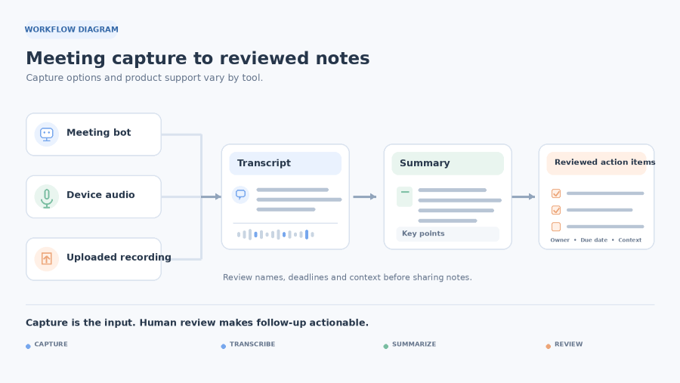
Choose How Your Meetings Will Be Captured
Start with the capture method, because meeting transcription software that fits your video calls may not suit an in-person discussion or an existing recording.
Meeting bots join supported calls as participants. Check calendar permissions, admission settings, and when they join.
Device capture uses your computer or phone’s audio without adding a bot. Check supported devices, audio permissions, and participant notification.
Recording uploads process audio or video you already have. Check import allowances, file limits, and export options.
These methods can overlap within one product. Fathom’s current documentation, for example, describes both bot and bot-free modes, while its separate help page says external recording uploads are unsupported. This guide uses official documentation and published pricing checked on October 10, 2026. It does not claim hands-on benchmark results. We assess capture, languages, usable outputs, integrations, privacy controls, and cost.
Five Best AI Note-Taking Tools for Meetings to Consider
Otter for Live Transcripts and Searchable Records
Otter fits when you want to follow a transcript during a conversation and revisit it afterward. Its documented features include speaker identification, audio playback, automated summaries, and search. It can also join Zoom, Microsoft Teams, and Google Meet calls.
For a project meeting, review the transcript around a decision before sharing the recap. Check speaker labels carefully when assigning work, since identifying separate voices and correctly naming each person are different tasks.
Otter’s language documentation currently lists English, Spanish, French, German (beta), Japanese, and Simplified Chinese (beta, spoken Mandarin only). Confirm that your meeting language is supported before assuming broad multilingual coverage.
The main limitation: Basic’s 30-minute conversation limit may be unsuitable for longer calls. Its three lifetime file imports also make the free plan restrictive for an existing recording collection.
Pricing:Otter Pro lists US$16.99 per user monthly, or US$8.33 per user per month with annual billing, excluding eligible promotional offers. CRM integrations have additional user restrictions, so check those before building a sales workflow around them.
Fireflies for Meeting Notes That Feed a Team Workflow
Fireflies makes sense when meeting notes need to move into a team workflow. Its published features include meeting search, the AskFred assistant, recording uploads, and integrations. The Pro plan adds action items, a task manager, downloads, and broader integration access.
Consider recurring client calls. Your team could review the captured discussion, confirm the next steps, and move approved information into connected tools. Keep human review between the summary and any customer-facing update.
Fireflies also offers bot-free desktop capture. Its documentation describes an indicator that shows when the notetaker is active and instructs users to obtain participant consent. Evaluate bot-free capture as a capture option that still needs participant consent.
The main limitation: Free transcription comes with limited summaries, storage, and AI features. The current free plan lists 400 minutes of team storage, while multi-language mode appears under Business.
Pricing:Fireflies Pro lists US$10 per seat per month with annual billing. Check the required tier and AI-credit allowances alongside the subscription price. For the wider process, see our guide to building an AI workflow.
Fathom and Quick Call Recaps
Fathom is worth trying if you want to revisit a call through summaries and selected moments. Its free plan includes unlimited recordings and transcriptions, instant summaries, clips, and playlists. It is a practical starting point for reviewing client discussions or sharing a specific exchange.
The capture method needs qualification. Fathom’s current upgrade guide describes transcript-only and audio-only bot-free modes alongside bot-based audio/video recording. However, the documented Fathom 3.0 rollout currently applies to Mac users, with availability varying by account. Check your device and account before choosing it for bot-free capture.
The main limitation: Fathom’s external-recording guidance says uploaded recordings are unsupported. It is therefore unsuitable if your main task is processing an existing collection of audio files.
Pricing: The pricing page lists individual Premium at US$20 monthly, or US$16 per month with annual billing. Team lists US$19 per user monthly, or US$15 with annual billing, with a two-user minimum. Compare the plans carefully, because advanced summaries, action items, collaboration, and CRM field updates sit in different tiers.
Granola When You Want to Skip the Meeting Bot
Granola suits people who want to keep writing their own notes while an assistant captures the conversation. Its desktop app accesses microphone and meeting audio without adding a bot to the call. Capture starts with your click, often from a calendar-based prompt, rather than an assistant joining scheduled meetings automatically.
For a customer interview, you could jot down the points that matter to your project, then review them alongside the transcript. This approach gives your own observations a place in the record instead of relying entirely on an automatic recap.
Granola’s security documentation distinguishes audio from stored text. It says desktop audio is transcribed in real time; mobile capture uses temporarily cached audio. Transcripts and notes remain stored, even though meeting audio is not retained as a recording.
The main limitation: no stored recording means you cannot rely on an audio replay to resolve a disputed phrase. Also check training settings: Granola says it uses anonymized data for its own training unless you opt out, while Enterprise training is off by default.
Pricing:Granola Business currently lists US$14 per user per month. Basic is free with 30-day meeting history. Business adds unlimited history and integrations such as Notion, HubSpot, and Zapier; some organizational controls require Enterprise.
Notta for Multilingual Meetings and Imported Recordings
Notta comes into play when your work includes different meeting languages or recordings captured elsewhere. Its transcription documentation lists 58 supported languages and covers both live speech and uploaded audio or video.
It is relevant to a consultant processing interviews or a team receiving recordings from several sources. Start by checking the exact language and capture mode you need. Broad language coverage still leaves accuracy across accents, terminology, and recording conditions to be tested.
The main limitation: standard transcription, transcript translation, and bilingual transcription are different features. Notta lists bilingual transcription and translation as an add-on for eligible paid accounts. Confirm whether your base subscription covers every multilingual workflow.
The free plan also needs scrutiny. Its 120 monthly minutes come with a three-minute limit per conversation, making it a brief trial rather than a practical allowance for full meetings.
Pricing:Notta Pro lists US$97.99 billed annually, approximately US$8.17 per month. It includes 1,800 monthly transcription minutes and up to five hours per recording. Check summary allowances, export access, and translation add-ons against your workload before subscribing.
Check Your Meeting Platform Before Buying Another Tool
Your existing platform may already provide the recap you need.
Google Meet’s “Take notes for me” creates notes in Google Docs and connects the recap to the Calendar event. It requires an eligible Workspace edition or Google AI plan. Its documentation currently lists eight languages, but supports only one language at a time within a meeting.
Microsoft Teams intelligent recap provides AI summaries, tasks, and other meeting information. Microsoft says access requires a qualifying Copilot or Teams Premium license.
Check your license and administrator settings first. Then decide whether you need features beyond that platform, such as recording imports or a shared archive across meeting services. Avoid paying for a second AI meeting summarizer until you can identify the workflow it improves.
Test Transcripts, Decisions, and Action Items Separately
Before subscribing, try the tool on a representative meeting you have permission to capture. Check three outputs separately:
Transcript: Are names, numbers, technical terms, and speaker labels correct?
Summary: Does it preserve decisions, disagreements, and unresolved questions?
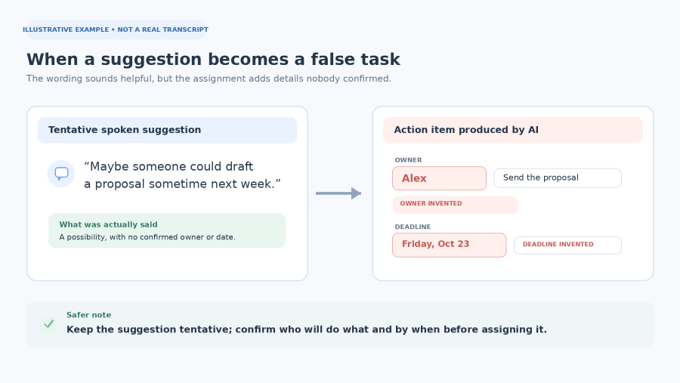
Action items: Does each task have the right owner and deadline?
Pay particular attention to tentative language. “We could send the proposal Friday” is a suggestion. “Amina will send the proposal Friday” is an assigned commitment. A reliable AI action item generator keeps the first statement a suggestion.
Repeat the check with the conditions your team encounters: accents, background noise, overlapping speech, and specialist vocabulary. Language support alone says little about how a tool will handle your calls.
Check Consent, Sharing, and Data Retention
Before enabling automatic meeting notes, confirm your organization’s recording policy and obtain the required permissions. Bot-free capture still processes participants’ speech. Otter’s privacy guidance, for example, requires users to ask for consent and indicate when they record or transcribe conversations.
Check who receives notes, who can open shared links, and whether connected apps receive meeting content. Choose a retention period for transcripts and recordings rather than keeping everything indefinitely.
Read training policies precisely. Otter distinguishes its own training on de-identified data from restrictions on third-party AI providers. Granola offers an opt-out from its own anonymized-data training. Each policy needs its own wording, since a blanket “your data is never used for training” claim would misstate them.
Similarly, Fireflies’ zero-retention statement concerns vendors and partners. Your own meeting archive stays subject to workspace storage and deletion controls.
Which Tool Fits Your Meeting Workflow?
Shortlist Otter for live transcripts, Fireflies for connected team workflows, Fathom for call recaps, Granola for capture alongside your own notes, and Notta for multilingual transcription or imports.
Then test the required workflow before paying. Include sharing, exports, and follow-up as well as the summary. Marketing teams can also place meeting capture within the wider stack covered in our AI tools for marketers guide.
Frequently Asked Questions
Can AI Meeting Note-Takers Work Without a Bot?
Yes. Several tools capture device audio without joining as a participant. Availability depends on the product, device, and account. Check notification and permission settings before use.
Can I Generate Meeting Notes from an Uploaded Recording?
Some tools support this, including Otter, Fireflies, and Notta. Check import and duration limits. Fathom’s current documentation says external recording uploads are unsupported.
Which Free-Plan Limits Should I Check?
Check minutes per month, maximum conversation length, imports, summaries, storage, and exports. A generous monthly allowance may still have a short per-meeting limit.
[…] Also check whether a meeting assistant saves a recording, transcript, or recap separately. Our AI meeting tool comparison covers those retention […]
[…] A transcript tells you what people said. A useful follow-up tells them what changed, who will act, and when the work is due. If your team still needs a way to capture calls, see our comparison of AI note-taking tools for meetings. […]





2 Comments
[…] Also check whether a meeting assistant saves a recording, transcript, or recap separately. Our AI meeting tool comparison covers those retention […]
[…] A transcript tells you what people said. A useful follow-up tells them what changed, who will act, and when the work is due. If your team still needs a way to capture calls, see our comparison of AI note-taking tools for meetings. […]