An AI Tool Security Checklist for Small Businesses
- November 12, 2026
- 1
Start with one approved AI workspace, a rule against putting work files in personal accounts, and a named person to handle mistakes. This AI security checklist for small

Start with one approved AI workspace, a rule against putting work files in personal accounts, and a named person to handle mistakes. This AI security checklist for small
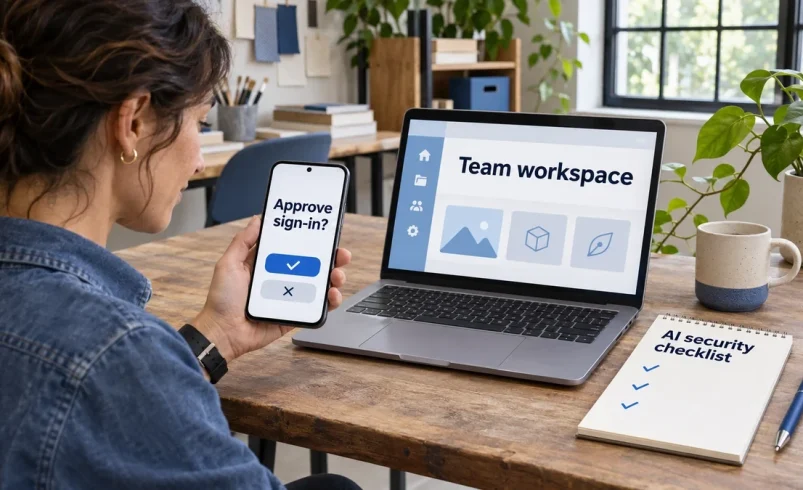
Start with one approved AI workspace, a rule against putting work files in personal accounts, and a named person to handle mistakes. This AI security checklist for small businesses helps you check the vendor, set permissions, and tell employees what they can share.
If people already use AI at work, give them an approved way to do the same useful task. That could mean using a synthetic sample to get help with a spreadsheet, then running the calculation locally. Our guide to analyzing CSV files without exposing sensitive data walks through that approach.
This guide uses official product and privacy documentation checked on November 8, 2026.
Address personal-account uploads first. A staff member trying to summarize a client file may reach for the AI account they already use at home. The owner then has to work out what went in, who can see it, and how to remove it.
IBM’s 2025 Cost of a Data Breach Report, based on IBM-sponsored Ponemon Institute research into 600 organizations that had already suffered breaches, found that 20% reported a security incident involving unapproved AI. Only 37% had an AI governance policy in place. The study describes that group of breached organizations. It gives small teams a reason to look for unapproved use, alongside their own review of which files staff handle. IBM report, figures 22 and 28.
For secure AI adoption, start with a managed business plan if people need to use approved work data. Pair it with a one-page rule that names the tool and the permitted data. A staff member should be able to answer “Can I put this file here?” before opening a chat.
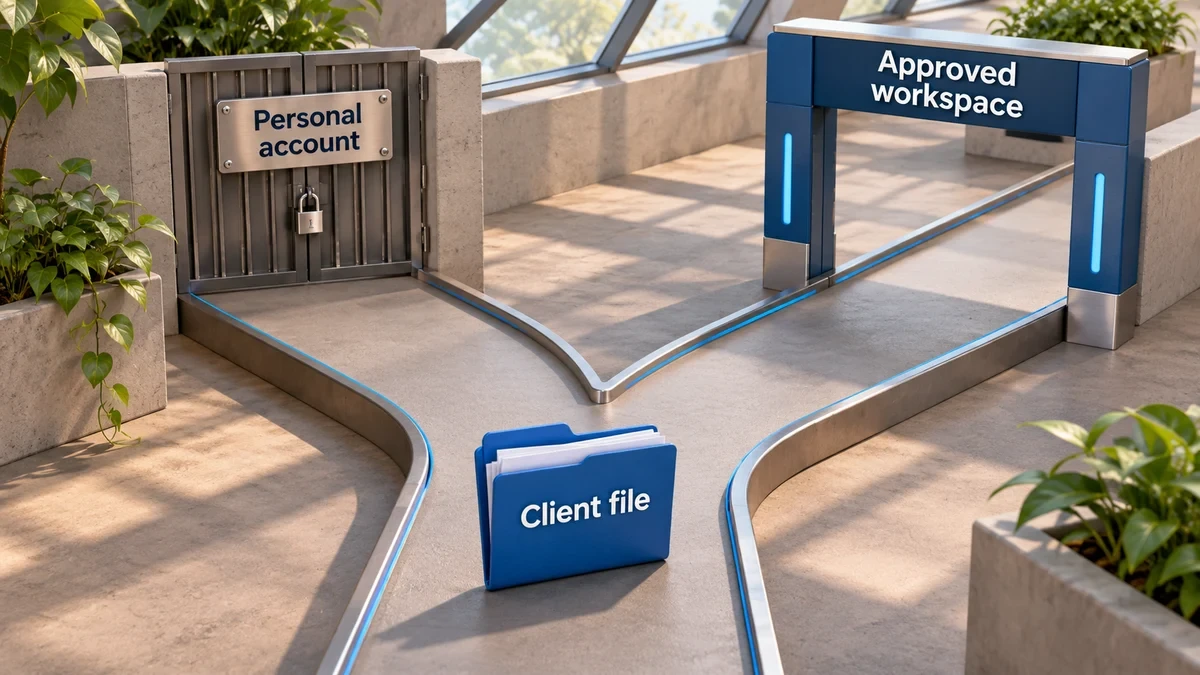
Give each group an owner. In a small team, the same person may handle purchasing and account settings, while a project lead approves the use of client data.
Apply MFA to both everyday and admin accounts where supported. If you use single sign-on (SSO), a shared work sign-in for multiple tools, confirm that it enforces your MFA policy. Only approve a sign-in prompt for a sign-in you initiated. CISA’s MFA guide.
Use this AI security checklist for small businesses to ask about the plan and features you’ll actually use. A browser extension, file upload, and connected drive may have different permissions or data terms. Get answers in writing and test the settings with a non-sensitive file.
|
Ask the Vendor |
Good Answer |
Red Flag |
|
Do you train on our prompts, files, or outputs by default? |
The contract identifies the covered data, defaults, and exceptions. |
The sales page says “private” without defining what that means. |
|
How long do you keep prompts and files? |
The vendor explains chat, file, log, and backup retention, including deletion timing. |
The vendor quotes a chat limit and can’t explain what happens to uploads. |
|
Can we enforce SSO and MFA on this plan? |
An admin can enforce the required settings and remove access from one place. |
Controls are optional for staff or available only on another tier. |
|
Can you share a recent SOC 2 Type II report? |
The report covers the service you’ll buy and shows the period assessed. |
The vendor offers a badge or an unrelated report. |
|
Can we export and delete our data? |
The vendor explains the steps, who can perform them, and what survives account closure. |
You can delete a chat, but the vendor can’t explain where attachments or shared copies go. |
A SOC 2 Type II report examines specified controls over a period. Check its scope and exceptions for the service you plan to use. AICPA’s guide to SOC 2 reporting.
For a wider review, use NIST’s generative AI risk management profile to check data privacy, information security, and third-party risk.
Check training and retention as separate items on your AI security checklist for small businesses. A vendor can exclude work chats from training and still keep them for history, audits, or support. Check the exact account and feature where the data will go.
|
Product |
Personal Account |
Managed Work Account |
|
ChatGPT |
Free, Plus, and Pro can use eligible content to improve models unless you turn that setting off. Chats normally remain until deleted. OpenAI schedules deleted chats for removal within 30 days, subject to exceptions. Separately saved files may need separate deletion. Training, retention |
Business and Enterprise content is excluded from training by default. Admins can set retention. OpenAI describes a 30-day removal window for deleted conversations, with exceptions. Workspace terms |
|
Claude |
Since the September 2025 policy change, training on ordinary consumer chats depends on your model-improvement choice. Opted-in data may be retained for up to five years. Deleted chats typically clear from back-end systems within 30 days, with exceptions. Policy change, consumer retention |
Team and Enterprise chats are excluded from training by default. Saved chats remain available in the product. Deleted chats normally clear within 30 days, subject to exceptions. Commercial training, retention |
|
Gemini |
In the personal Gemini app, Google can use chats for training when Keep Activity is on. Activity defaults to 18-month auto-deletion. With Keep Activity off, new chats are still kept for 72 hours, and feedback is an exception to the training rule. Consumer privacy |
For qualifying Workspace accounts, Google excludes prompts and work content from training without permission. Admins can set Workspace side-panel retention from 90 days to indefinite. The Gemini app has separate admin settings. Workspace privacy and retention |
Vendor documentation checked November 8, 2026.
Review training exceptions before anyone sends feedback on a chat containing work data. Also check whether a meeting assistant saves a recording, transcript, or recap separately. Our AI meeting tool comparison covers those retention controls.
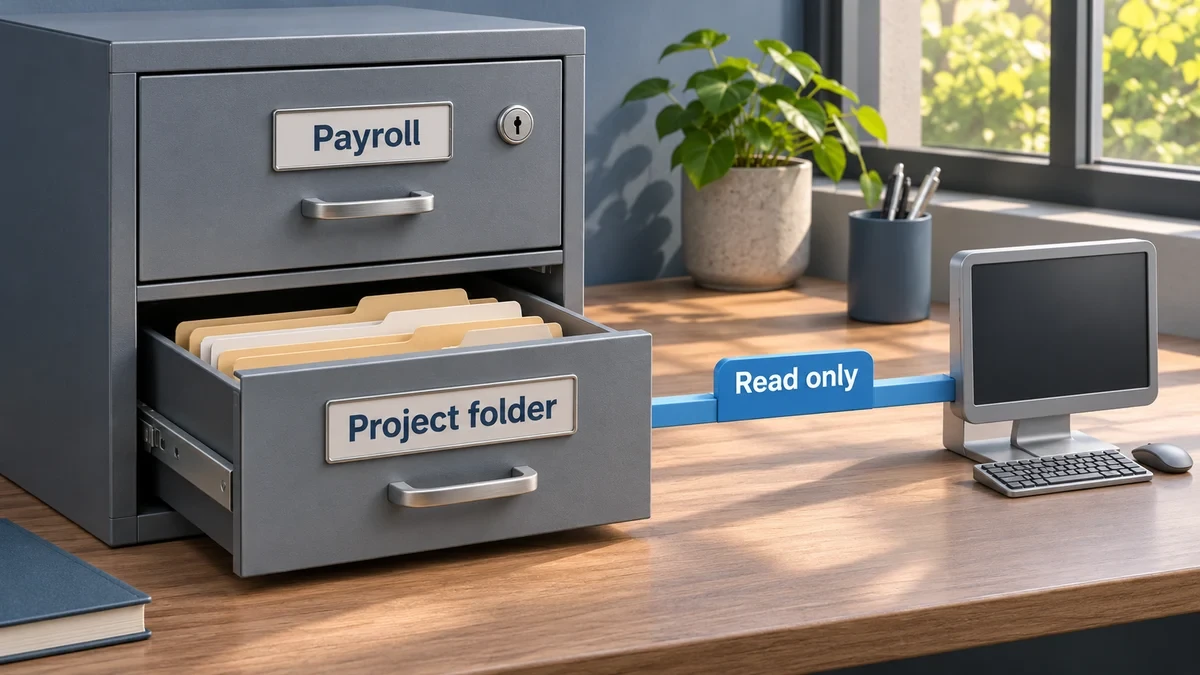
To protect confidential data when using AI, grant access to the smallest useful source. For example, a connector that drafts a project summary needs the project folder. Payroll can stay outside its reach. If a browser extension asks to read every site, check whether you can restrict it to the sites needed for the job. AI browser extension permissions.
Prompt injection happens when text in a source tries to steer the AI as if it were an instruction. A webpage could tell a connected assistant to send a file elsewhere. Limit what the tool can read, and require a person to approve actions that send, change, or delete data. OWASP on prompt injection, OWASP on sensitive information disclosure.
Use this template in your team handbook alongside the AI security checklist for small businesses. Replace the brackets with actual names and examples before sharing it with staff.
Scope. This policy applies to staff and contractors who use AI for [company]. Use [approved workspace] for approved work. [Owner] maintains the tool and access list.
Allowed. Draft from public materials or synthetic data. Summarize internal material only when that material is on the approved list for the tool. Review output before use.
Needs Approval. Ask [owner] before uploading client material, enabling a connector, adding a browser extension, or letting AI send messages or change records.
Never. Keep work files out of personal AI accounts. Credentials, recovery codes, payment card numbers, and restricted personnel records stay out of AI tools.
Report. Tell [owner and contact channel] immediately if you use the wrong account, share a restricted file, or see an unexpected action. [Backup contact] handles reports when the owner is away.
When something goes wrong, contain the exposure first. Then record what happened so the owner can determine which data was involved and what needs to happen next. FTC response planning for small businesses.
Say a staff member uploads a client spreadsheet to a personal AI account. The owner asks them to stop using the chat and disable any shared link. They record the time, account, file name, and actions taken in a restricted incident log without copying the client data into another system.
Next, the owner checks whether the file was shared or saved separately, then arranges removal with the user or vendor after preserving the necessary evidence. If credentials were exposed, revoke or rotate them. The owner checks client and legal notification obligations with the appropriate adviser and updates the control that failed.
Keep the reporting contacts in your AI security checklist for small businesses, somewhere staff can reach them even if the affected account is locked.

Close the gap that could expose the most data this week. Then set a monthly review for accounts, connected apps, and changes to vendor terms. Recheck sooner when a tool adds a connector or a staff member changes roles. Keep the owner and approval step with the rest of your AI workflow documentation.
|
If You See… |
Start With… |
Confirm It Works |
|
Staff using personal accounts for work |
An approved workspace and a plain-language upload rule |
Staff can identify the account and permitted file types. |
|
An AI tool connected to too many folders |
A limited, read-only connection |
A test user can open the project folder and can’t retrieve payroll. |
|
A workflow that sends or edits automatically |
A human approval step |
A test run stops before sending or changing anything. |
Run this AI security checklist for small businesses on one workflow your team already uses. Walk through its permissions with the owner, then test it with an invented file. If it can send or change data, add an approval step before expanding the automation.
Check the subscription and active workspace. A work address by itself doesn’t tell you which contract or admin controls apply.
Remove or restrict downloaded copies where they were saved. The vendor’s deletion process applies to the copy it controls.
Remove their workspace account and review shared links, connected apps, and credentials they could use. Transfer ownership of any active workflow to a named team member.





1 Comment
[…] they give authorized reviewers enough evidence. Set an owner and retention period for the log. Our AI security checklist for small businesses covers access and incident […]