How to Build an AI Workflow That Actually Works: A Practical Guide for 2026
June 27, 2026
1
The gap between people using AI and people getting real value from it comes down to one thing and that is structure. Individually powerful tools like ChatGPT, Claude,
The gap between people using AI and people getting real value from it comes down to one thing and that is structure. Individually powerful tools like ChatGPT, Claude, Notion AI, n8n, become genuinely transformative only when they’re arranged into a workflow with clear inputs, outputs, and handoffs. Without that structure, you’re not running an AI workflow; you’re running a series of disconnected AI experiments.
This is a practical ai workflow guide for 2026 built around three complete, deployable templates: one for content creators, one for knowledge workers, and one for developers. Each includes the full tool stack, how the pieces connect, step-by-step setup instructions, and the specific failure points most people hit.
What Makes an AI Workflow Actually Work (And Why Most Fail)
An AI workflow is not a collection of tools. It’s a system: a defined sequence of inputs, AI-assisted transformations, and outputs, where the output of each step becomes the input for the next.
The two most common reasons workflows fail:
Over-automation before validation. People connect six tools on day one and can’t diagnose what broke when output quality drops. Start with the smallest workflow that produces a useful output, then add steps.
Treating AI output as a final product. Every AI-assisted step produces a draft, not a deliverable. The workflow needs defined review points where a human checks for accuracy, coherence, and fit before the output advances.
The workflows below are designed with both of these principles baked in. They’re ambitious enough to be genuinely useful, contained enough to debug when something goes wrong.
Before You Build: The Four Questions That Define a Good AI Workflow
Before picking any tool, answer these:
What is the repeating task? A good AI workflow automates something you do regularly, not occasionally. One-off tasks don’t justify workflow setup overhead.
What’s the input, and where does it live? Is it a URL, a raw transcript, a brief, a GitHub issue? Knowing the input format determines your first tool choice.
What does “done” look like? Define the output format before you design the workflow. A published blog draft is different from a finished Notion page vs. a Slack summary.
Where do humans need to review? No workflow should run fully automated on anything public-facing or consequential without a review gate.
With those answers clear, the following templates become directly applicable.
Workflow 1 — The Content Creator AI Workflow
Goal
Reduce the time from content idea to polished first draft by 60–70%, while maintaining quality control at the editorial stage.
Tool Stack
Tool
Role
ChatGPT or Claude
Research assistant, outline generation, draft writing
If you’re still deciding which tools belong in your stack, our breakdown of the best AI tools for freelancers in 2026 covers the full picture of what’s worth paying for.
Workflow Diagram Explanation
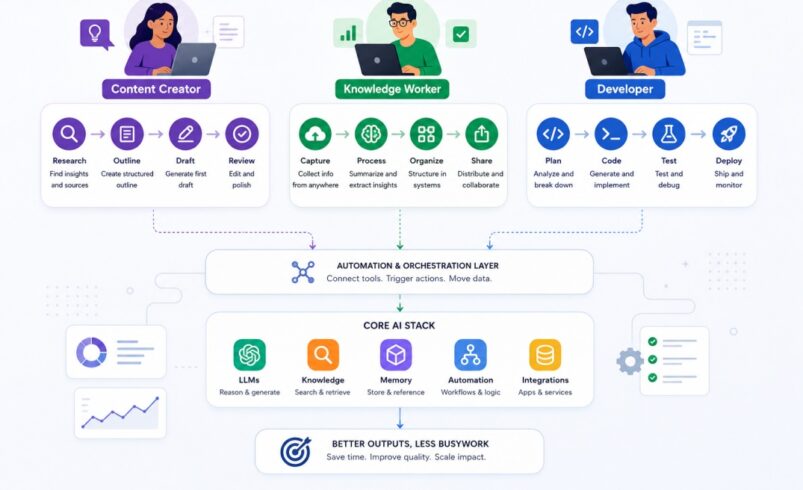
The workflow runs in four stages: Research → Outline → Draft → Review.
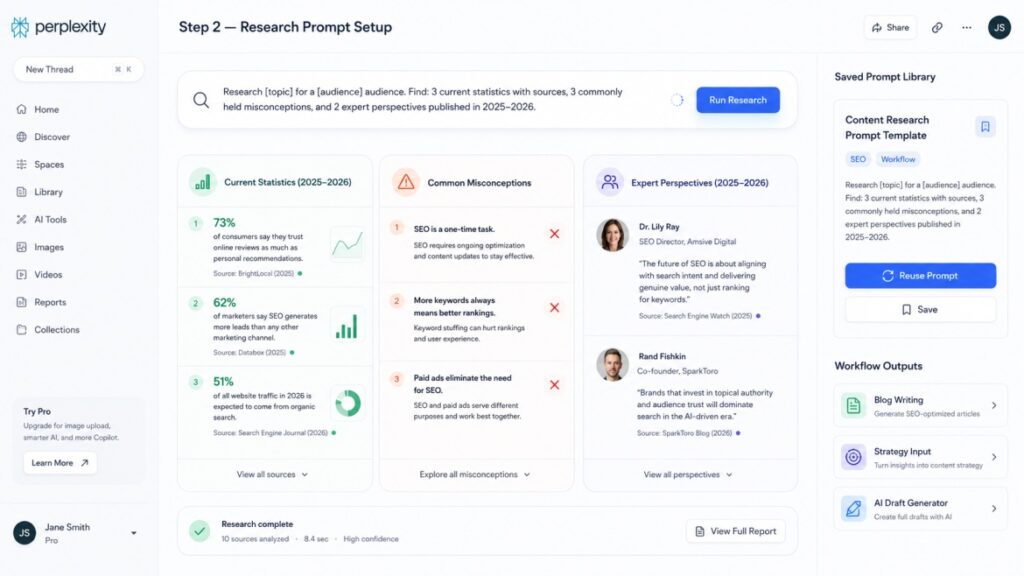
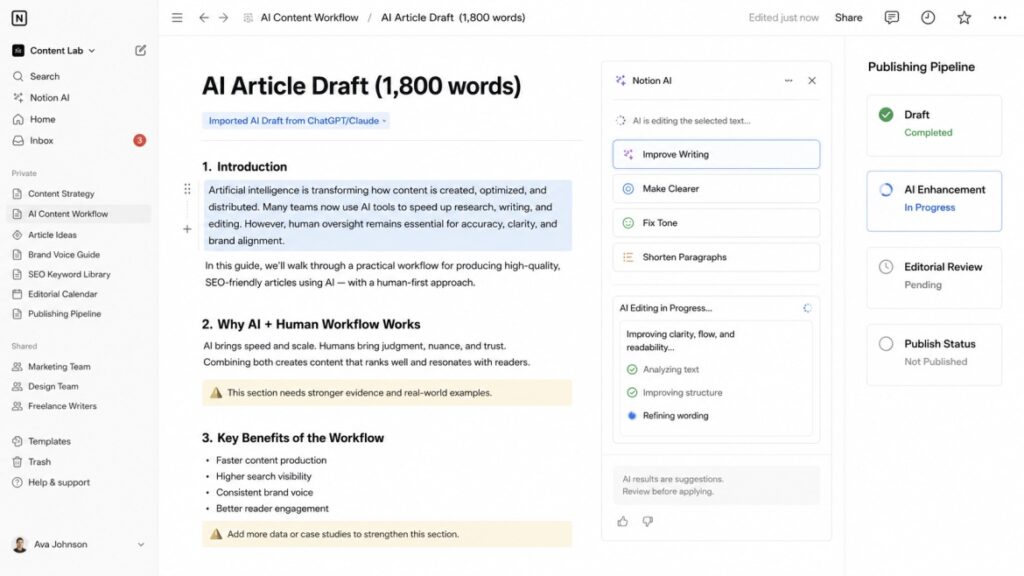
A content brief (topic, target audience, angle, primary keyword) enters at stage one. Perplexity AI handles initial research, surfacing current statistics, primary sources, and competing coverage. That research is fed into Claude or ChatGPT with a structured prompt to generate an SEO-aligned outline. The outline is approved or edited by the human editor, then fed back into the AI for a full draft. The draft lands in Notion, where Notion AI assists with sentence-level tightening and tone adjustments before the editor does a final pass.
Step-by-Step Setup
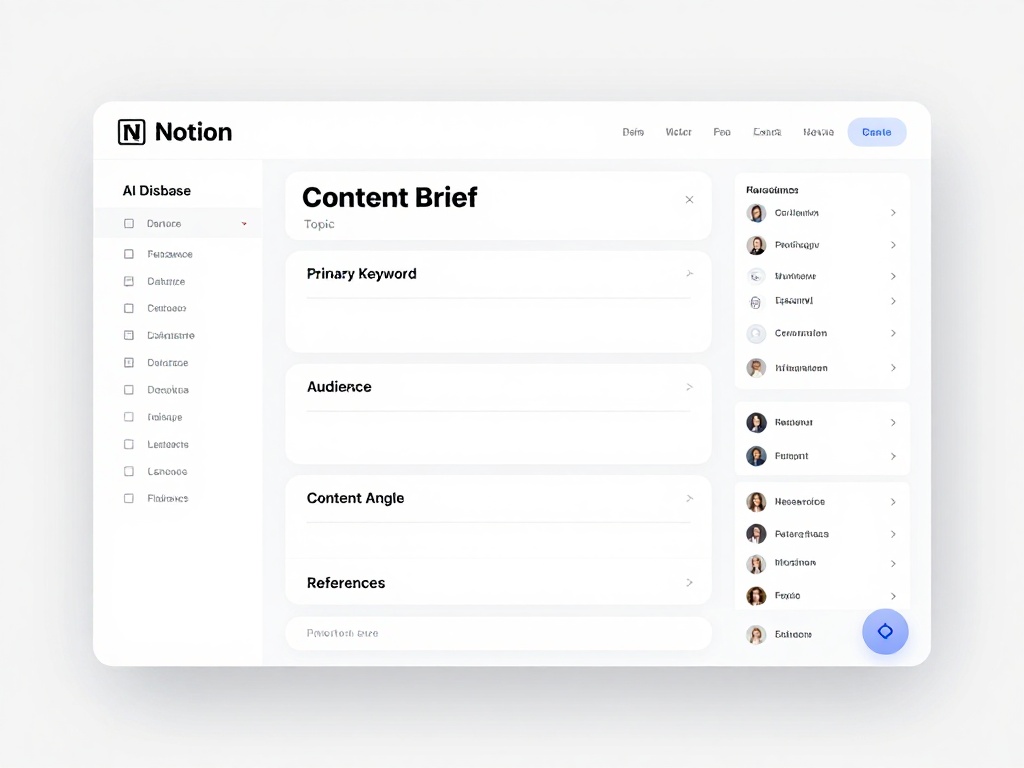
Step 1 — Build your content brief template. Create a Notion template with fields for topic, primary keyword, secondary keywords, target audience, content angle, and reference URLs. Every piece starts here.
Step 2 — Set up your research prompt. In Perplexity AI, use a structured prompt like: “Research [topic] for a [audience] audience. Find: 3 current statistics with sources, 3 commonly held misconceptions, and 2 expert perspectives published in 2025–2026.” Save this as a reusable prompt.
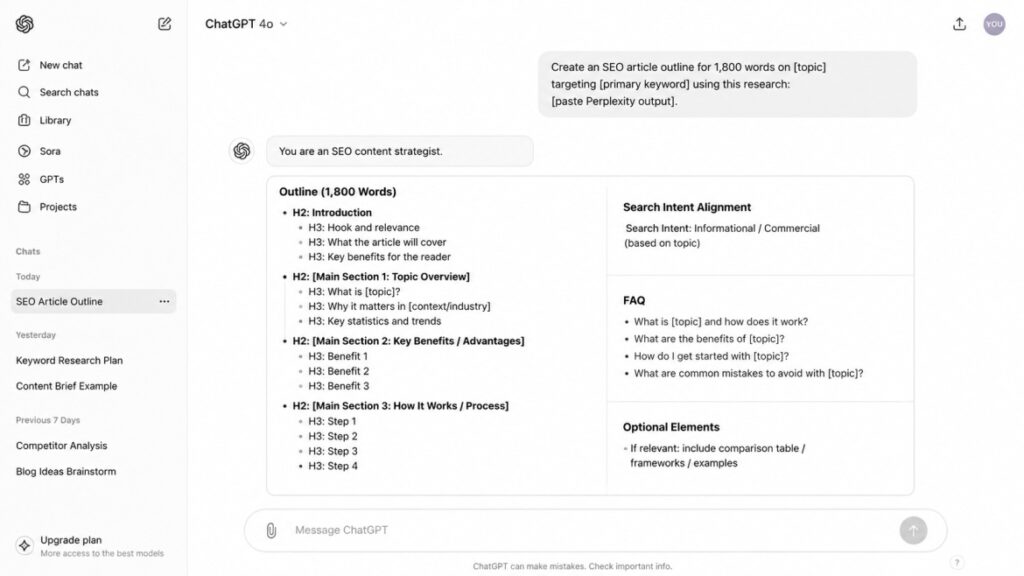
Step 3 — Create your outline prompt. In Claude or ChatGPT, use: “You are an SEO content strategist. Based on this research [paste Perplexity output], create an H2/H3 outline for a 1,800-word article on [topic] targeting the keyword [primary keyword]. The article should satisfy [informational/commercial] search intent. Include FAQ section, comparison table if relevant, and a clear narrative arc.”
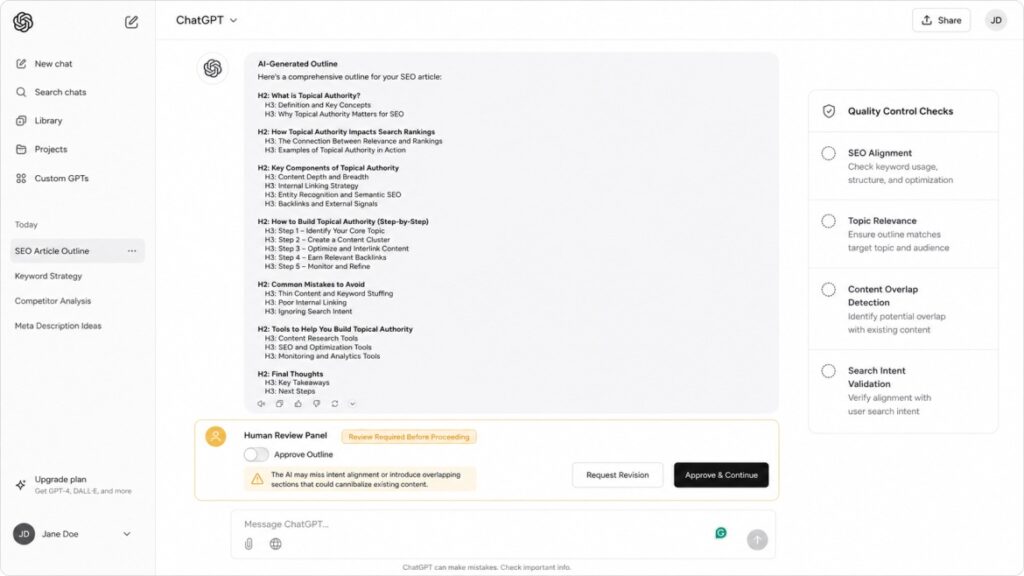
Step 4 — Review and approve the outline. This is your first human gate. Don’t skip it. The AI will occasionally miss the right angle or include sections that cannibalize other content.
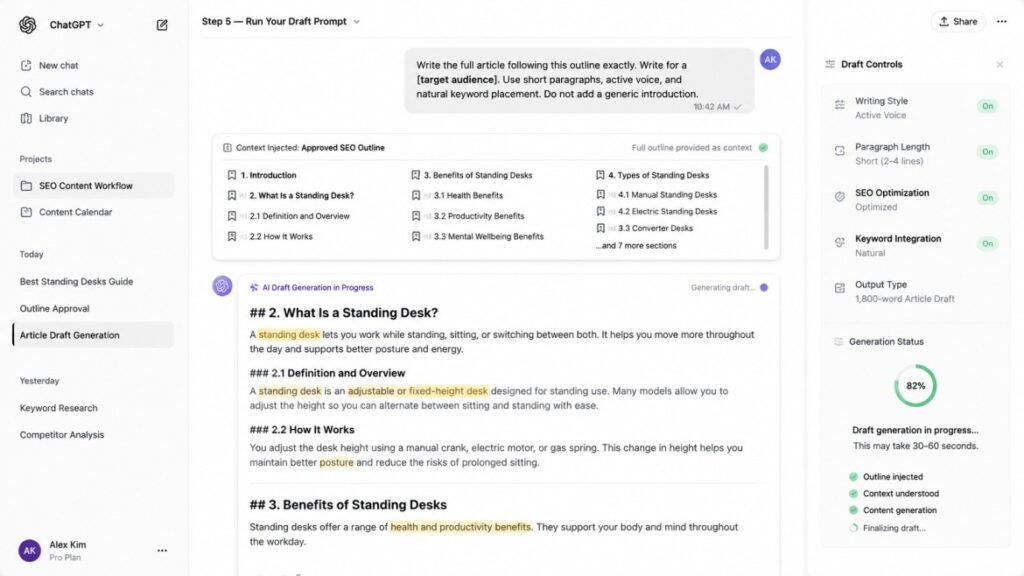
Step 5 — Run your draft prompt. Feed the approved outline back into Claude with: “Write the full article following this outline exactly. Write for a [target audience]. Use short paragraphs, active voice, and natural keyword placement. Do not add a generic introduction.”
Step 6 — Move draft to Notion. Use Notion AI’s “Improve writing” function on sections that feel flat, then do your editorial review before publication.
Common Mistakes
Using the same AI for research and drafting. AI models hallucinate citations. Use Perplexity (which retrieves live sources) for research, and a writing model for drafting.
No outline approval gate. Approving the outline before drafting catches structural problems cheaply, before a full 1,800-word draft has been generated on a flawed foundation.
Publishing first drafts. AI drafts at this stage should reach approximately 70–80% quality. The editorial pass brings it to publication standard.
Optimization Tips
Build a library of saved prompts for your most common content types. A how-to guide prompt, a comparison article prompt, and a listicle prompt cover most publishing formats. Reusing tested prompts dramatically reduces variance in output quality.
If you’re managing an editorial calendar for multiple writers, Notion AI integrated with a shared content brief database, keeps everyone working from the same structure.
Real-World Use Case
A freelance content strategist producing 12 articles per month reduced her research-to-draft time from an average of 4.5 hours per piece to 1.8 hours using this exact workflow. She uses Perplexity for research, Claude for outlines and drafts, and Notion AI for final tightening. Her editorial review time is unchanged, but the raw material she’s editing is substantially better.
Workflow 2 — The Knowledge Worker AI Workflow
Goal
Eliminate the three biggest time sinks for knowledge workers — meeting summarization, email management, and information retrieval, using an integrated AI workflow that keeps everything organized without adding new tools to learn.
Connecting tools when no native integration exists
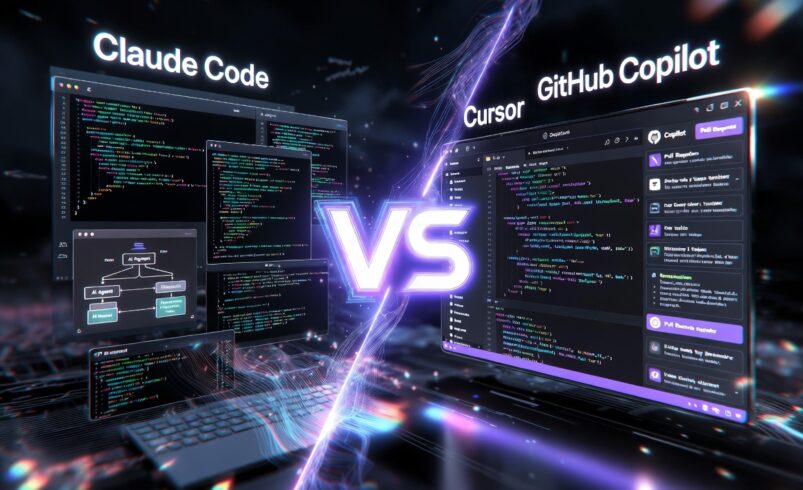
Before committing to a tool combination, read our full Claude Code review, it covers how Anthropic’s coding agent stacks up against Cursor and GitHub Copilot on real tasks.
Workflow Diagram Explanation
The workflow addresses three distinct input streams and consolidates outputs into one system.
Stream 1 (Meetings): Recording → Transcription (Otter.ai) → AI Summary + Action Items (Claude) → Tasks created in ClickUp → Summary emailed to attendees.
Stream 2 (Email): Inbox reviewed → Priority emails flagged → Claude drafts responses for review → Sent with human approval.
Stream 3 (Documents): Research documents, reports, and briefs uploaded to Notion → Notion AI used for Q&A retrieval → Relevant sections surfaced when writing related content.
Zapier acts as the connector for handoffs that don’t happen natively: pushing meeting summaries from Otter.ai into Notion, for example, or creating ClickUp tasks from flagged emails.
Step-by-Step Setup
Step 1 — Set up Otter.ai or Fireflies.ai. Connect to your Google Meet or Zoom calendar. Enable automatic recording. Fireflies.ai’s AI summary feature generates structured meeting notes automatically post-call.
Step 2 — Create your meeting-to-action prompt. After receiving the transcript, paste it into Claude with: “Here is a meeting transcript. Extract: 1) Three-sentence meeting summary, 2) All action items with owner and deadline if mentioned, 3) Open questions requiring follow-up, 4) Decisions made.”
Step 3 — Create a ClickUp AI task template. ClickUp AI can generate subtasks automatically from a project brief. Set up a template for recurring project types so task generation takes under two minutes.
Step 4 — Build your email drafting prompt.“Draft a professional reply to this email [paste email]. Context about my role: [your role]. Keep it under 150 words. Action required from them: [specify]. Tone: direct but collegial.”
Step 5 — Connect Otter.ai to Notion via Zapier. Create a Zap: when Otter.ai completes a new transcript summary, create a new Notion page in your “Meeting Notes” database with the summary content and date.
Step 6 — Run a weekly inbox triage session. Once per week, batch-process your email backlog using the drafting prompt. Don’t try to do this in real time throughout the day — the context-switching cost eliminates the time saved.
Common Mistakes
Over-connecting tools before establishing the habit. Set up one stream first (usually meetings), use it for two weeks, then add email. Adding all three at once makes it hard to attribute which change produced which improvement.
Not reviewing AI task assignments. Claude and ClickUp AI will occasionally misread who owns an action item in a meeting. Review before distributing.
Letting the knowledge base grow without structure. Notion becomes slow and hard to search without consistent tagging and folder structure. Set naming conventions before you start adding content.
Optimization Tips
For the email stream, build a prompt library for your most common email types: follow-up after a meeting, declining a request, requesting an update, responding to a proposal. Pre-tested prompts for recurring email types eliminate the need to write a prompt from scratch each time.
If your work involves heavy document analysis, consider connecting your Notion database to Claude via its API. This enables document Q&A against your own knowledge base rather than relying on Claude’s general training data.
Real-World Use Case
A senior product manager at a 200-person SaaS company was spending approximately 2.5 hours daily on meeting follow-up and email. After implementing this workflow, she reduced that to 45 minutes: 20 minutes reviewing and sending AI-drafted meeting summaries and action items, and 25 minutes approving email drafts. The time recovered went toward strategy and stakeholder work that couldn’t be automated.
Workflow 3 — The Developer AI Workflow
Goal
Accelerate development velocity by integrating AI assistance throughout the development cycle — not just for code generation, but for code review, documentation, test writing, and debugging — without breaking existing team workflows.
Tool Stack
Tool
Role
Cursor
AI-native code editor, inline generation, chat with codebase
Automation of repetitive DevOps tasks, webhook handling
Linear or GitHub Issues
Task and bug tracking
Workflow Diagram Explanation
The developer workflow integrates at four points in the standard dev cycle: Spec → Implementation → Review → Documentation.
A spec or GitHub issue enters the workflow. Claude (used via the API or Claude.ai) analyzes the spec and produces a technical plan: file structure, function signatures, dependencies, edge cases, and test scenarios. The developer reviews and approves the plan, then works in Cursor, which has full codebase context and generates implementation code. Pull request review uses GitHub Copilot’s PR review feature to flag potential issues before human review. Documentation is generated by Claude from the final code before the PR is merged.
For repetitive DevOps tasks — environment setup, test environment resets, deployment notifications — n8n handles automation. Understanding how n8n compares to Make is useful here: n8n is generally preferred for developer workflows because of its self-hosting option and stronger support for custom code steps.
Step-by-Step Setup
Step 1 — Set up Cursor with your codebase. Open your project in Cursor. Index the codebase (Settings → Codebase Indexing). This allows Cursor’s chat feature to answer questions about your specific code rather than generic programming concepts.
Step 2 — Create a spec-to-plan prompt in Claude.“You are a senior software architect. Read this feature spec [paste spec]. Produce: 1) Technical implementation plan with file-by-file changes, 2) Function signatures for new functions, 3) List of edge cases to handle, 4) Suggested test scenarios. Ask me clarifying questions before producing the plan if anything is ambiguous.”
Step 3 — Configure Cursor’s .cursorrules file. This file tells Cursor your coding conventions: preferred patterns, libraries to use or avoid, naming conventions, and testing requirements. This dramatically reduces the need to correct convention errors in generated code. Anthropic’s documentation on prompt engineering provides useful principles for writing these rule files effectively.
Step 4 — Set up GitHub Copilot PR review. In your GitHub repository settings, enable Copilot code review. Configure it to flag security issues, test coverage gaps, and documentation gaps automatically on every PR.
Step 5 — Build your documentation prompt. After implementation: “Read this function [paste code]. Write: 1) JSDoc/docstring comment, 2) README section explaining what it does and how to use it, 3) One usage example.”
Step 6 — Set up n8n for DevOps automation. Deploy n8n (self-hosted or cloud) and create workflows for: new issue created in Linear → Slack notification to relevant channel; PR merged to main → trigger deployment pipeline; test suite failure → create bug report issue automatically.
Common Mistakes
Using AI-generated code without reading it. Generated code can be functionally correct but architecturally problematic. Review every significant AI-generated addition before committing, not just before merging.
Skipping the spec-to-plan step. Jumping directly to code generation without a reviewed technical plan produces faster output and slower, more painful debugging. The plan step is the highest-leverage investment in the workflow.
Not using .cursorrules. Without convention enforcement, Cursor will generate code that does what you asked but doesn’t match how your team writes code. This creates subtle inconsistencies that accumulate technical debt.
Optimization Tips
For larger codebases, create specialized Cursor contexts for different parts of the codebase (frontend, backend, infrastructure) with separate .cursorrules files tuned to each context. This improves suggestion quality significantly compared to a single monolithic context.
Claude’s extended thinking mode is particularly effective for architectural decisions — problems that require weighing multiple tradeoffs rather than generating a specific implementation. Use it for the spec analysis step rather than Cursor’s inline generation.
Real-World Use Case
A two-person founding team building a B2B SaaS product implemented this workflow after struggling with context-switching overhead between coding and writing documentation. They reduced the time to write comprehensive function documentation from approximately 40 minutes per feature to 8 minutes. More significantly, the spec-to-plan step caught three significant architectural issues before implementation that would have required costly refactoring later.
Connecting Your Workflows: The AI Stack Architecture
If your role spans more than one of these categories, content work plus project coordination, or development plus documentation, consider how the workflows can share infrastructure.
Notion serves as a natural hub across all three workflows: content calendar for the creator, knowledge base for the knowledge worker, technical documentation for the developer. A single, well-organized Notion workspace that all three workflows write to gives you a searchable, AI-queryable record of work across functions.
Understanding how AI agents are beginning to coordinate these workflows automatically is worth tracking. The AI agents explainer provides a strong foundation for understanding how multi-step automation is evolving, including when agentic approaches are appropriate and where human-in-the-loop remains essential.
For teams managing budget across multiple AI tools, McKinsey’s research on AI productivity ROI consistently shows that structured workflow integration — rather than individual tool adoption — is what produces measurable productivity gains.
Frequently Asked Questions
What’s the best starting point for someone new to AI workflows?
Start with the smallest repeating task in your work, something you do at least three times per week. Build one workflow for that single task. Get it working reliably before adding complexity. The content creator workflow’s “research to outline” step is a good starter for most knowledge workers, regardless of role.
Do I need to be technical to build these workflows?
The content creator and knowledge worker workflows require no technical skills. The developer workflow requires comfort with your existing development environment. The n8n and API steps in the developer workflow require basic familiarity with webhooks and JSON, but neither requires software engineering experience to implement.
How much do these tool stacks cost?
A content creator workflow running Claude Pro ($20/month), Perplexity Pro ($20/month), and Notion (free tier or $16/month) runs $40–56/month. The knowledge worker stack adds Otter.ai Business ($20/user/month) and ClickUp ($12/user/month). The developer stack with Cursor ($20/month) and GitHub Copilot ($19/month) sits at $39/month. These are individual pricing tiers; team pricing varies.
How do I prevent AI from producing inconsistent quality across a team?
Standardize prompts. Store your core prompts in a shared Notion database, Slack channel, or GitHub repository, wherever your team already works. When a prompt consistently produces good output, document it and make it the team’s default. Prompt drift (everyone using slightly different phrasings) is the main source of output inconsistency in team deployments.
What’s the difference between an AI workflow and AI agents?
A workflow is a defined sequence of steps, the same steps run each time in the same order. An AI agent decides which steps to take based on context, adapting to the specific task. The workflows above are structured, with human-review gates; true agents operate more autonomously. Most teams should master structured workflows before adopting agentic approaches.
Can I use open-source models instead of commercial ones?
Yes, particularly for the developer workflow. Ollama running local models (Llama 3.3, Qwen 2.5, Mistral) can replace Claude for many code-related tasks if data privacy is a concern. Quality on complex reasoning tasks is lower than frontier commercial models, but for straightforward code generation and documentation the gap is narrowing.
Final Words
The value of an AI workflow guide for 2026 isn’t in identifying new tools. Instead, it’s in connecting tools into systems with defined inputs, outputs, and review gates. The three workflows above are designed to be immediately deployable: specific tool choices, specific prompt structures, and specific setup steps rather than general advice.
Start with one workflow, get it producing reliable output, then consider expanding. The biggest gains in AI productivity don’t come from using more tools; they come from using the same tools more deliberately.
[…] your needs, switching may add little value. A specialist tool could complement it. Our guide to building an AI workflow can help you place research, drafting, and review in a practical […]


1 Comment
[…] your needs, switching may add little value. A specialist tool could complement it. Our guide to building an AI workflow can help you place research, drafting, and review in a practical […]