Cursor AI vs GitHub Copilot: Which AI Coding Assistant Is Actually Worth Paying For in 2026?
May 21, 2026
0
The question comes up constantly in developer forums: Cursor or GitHub Copilot? The short answer nobody wants to hear is that comparing them directly is a bit like
The question comes up constantly in developer forums: Cursor or GitHub Copilot? The short answer nobody wants to hear is that comparing them directly is a bit like comparing a note-taking app to a full document editor. They solve adjacent problems, not the same one. But if you’re choosing where to spend money on AI coding help, the distinction matters more than any feature list will tell you.
This comparison was built around a single real-world project: a REST API with user authentication, a PostgreSQL database layer, and a simple admin dashboard. Both tools were used on identical tasks so the findings are grounded in the same conditions.
The Core Difference You Need to Understand First
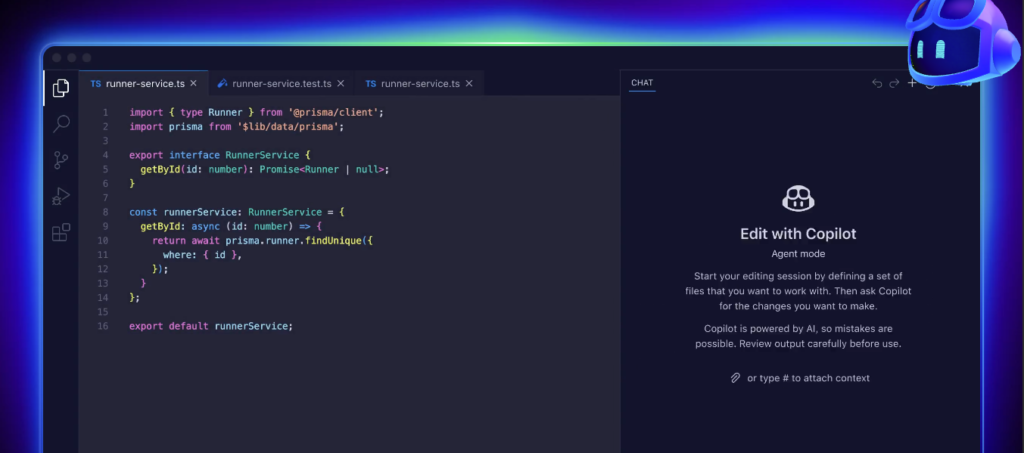
GitHub Copilot is an AI layer that lives inside your existing editor. It watches what you type and suggests completions, sometimes one line, sometimes a whole function. You keep using VS Code, JetBrains, Neovim, or whatever environment you already work in. Copilot attaches to it.
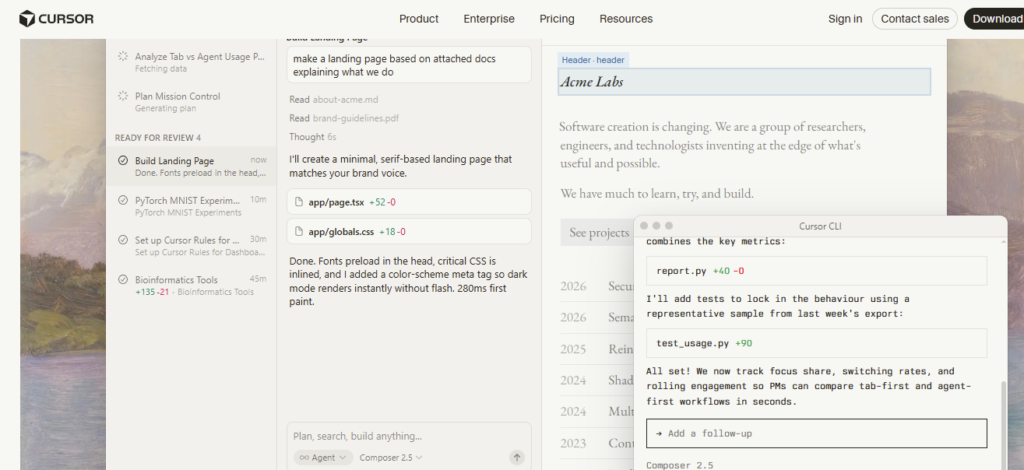
Cursor is a standalone code editor built on top of VS Code. It does autocomplete too, but its real value is whole-codebase awareness. Cursor indexes all your project files and lets you run AI conversations with full project context, ask questions, request multi-file changes, and debug across files at the same time. You are not just getting smarter autocomplete. You are working with a fundamentally different interaction model.
Understanding that gap clears up most of the confusion people have when comparing the two.
How We Tested Both Tools
The test project: a Node.js/Express API with JWT authentication, a PostgreSQL database using Prisma ORM, and a React admin panel on the front end. The same task list was completed using each tool — three API endpoints, authentication middleware, two database migrations, and two intentional logic errors planted before testing.
Both tools were tested on paid tiers: Copilot Individual ($10/month) and Cursor Pro ($20/month). Free-tier testing was excluded to avoid skewed results.
Side-by-Side Workflow Comparison
Code Autocomplete Quality
Copilot’s autocomplete is genuinely polished. Typing the beginning of an Express route handler, it confidently fills in the full structure. React component completions handle prop destructuring, JSX layout, and common hooks with high accuracy. It is consistent and rarely produces something clearly wrong.
Cursor’s tab completions are comparable in quality but slightly more context-aware. It factors in recently edited files and sometimes predicts completions referencing other parts of your project. During testing, Cursor suggested a utility function name that existed in a different file that had not been actively opened. Copilot did not do that.
For raw autocomplete on a single file in isolation, both tools are largely equal. Cursor edges ahead when your project has interconnected files and shared logic.
Multi-File Editing
This is the biggest difference between the two tools. Copilot does not natively edit multiple files at once. It can generate code that you then copy to different files manually, but there is no workflow where Copilot takes a description and updates six files simultaneously.
Cursor’s Composer feature does exactly that. Describing an “add password reset endpoint” task to Composer produced edits spanning a new route file, an update to the router index, a service layer function, an email utility, a Prisma migration, and updated API documentation, all presented as reviewable diffs before applying. When it worked, it was genuinely fast.
It did not always work perfectly. Roughly one in three complex Composer requests needed manual correction after generation — import paths were wrong, a schema field was referenced that did not exist, or a function landed in the wrong module. A 30–35% rework rate is honest. But generating a coordinated six-file change in 90 seconds and spending 10 minutes fixing one import is still faster than writing all six files by hand.
Debugging and Error Fixing
Copilot Chat can explain errors and suggest fixes, but its context is mostly limited to the currently open file. It works well for surface-level bugs and TypeScript compiler errors visible in a single file.
Cursor’s debug chat spans the whole project. When one of the planted logic errors — a database query returning stale data under a specific condition — was raised in Cursor’s chat, it traced the call chain through three separate files and identified the root cause correctly. Copilot Chat found the symptom in the immediate file but did not trace back to the origin.
This difference matters a lot for real bugs. Most non-trivial bugs live across multiple files. Cursor’s architecture is built for that; Copilot’s is not.
Codebase Understanding and Context
Copilot’s effective context window is the open file and recently visited files. It works well when you are focused on a single module. Questions like “where is the session token being created?” or “what controls the rate limiter?” are harder for it to answer accurately.
Cursor indexes the entire project. On a 25-file project, Cursor answered nine out of ten codebase-navigation questions correctly. Copilot answered four out of ten with full accuracy and gave partial or incorrect answers for the rest. That gap in practical project navigation is one of the clearest reasons to choose Cursor for larger codebases.
Speed and Latency
Copilot’s inline completions appear faster, typically under half a second for a clean line suggestion. Cursor’s completions are slightly slower, around 0.5 to 1.5 seconds, depending on context complexity. Neither is disruptive in active coding.
Composer requests, which coordinate changes across multiple files, take 15 to 45 seconds depending on scope. That is acceptable given what it is doing, but it is worth knowing if you expect instant responses for complex generation tasks.
Agentic Features in 2026
Agentic coding, where the AI can run terminal commands, execute tests, and iterate without step-by-step instruction, is an area both tools are developing fast.
Cursor’s Agent mode can run terminal commands, read test output, and fix failing tests. It is not perfectly reliable, but it works well on straightforward test-fix cycles and removes a layer of manual iteration.
GitHub Copilot has expanded its agent features significantly within GitHub Actions and Codespaces. For teams already deep in GitHub’s ecosystem, Copilot’s agents integrate better into CI/CD pipelines. Cursor’s agents are stronger for local development iteration. According to the official GitHub Copilot documentation, Copilot Workspace now supports multi-file agentic editing as a standalone product, though it is separate from the IDE extension.
Pricing Comparison
Plan
Cursor
GitHub Copilot
Free
50 premium requests/month
Limited free tier
Individual
$20/month (Pro)
$10/month (Individual)
Team / Business
$40/user/month
$19/user/month
Copilot is cheaper at every tier. If budget is the primary constraint, that matters. If you are choosing on capability per dollar for a professional developer coding all day, Cursor’s Pro tier delivers more output per subscription for multi-file project work.
Which Developer Should Use Which Tool?
Use Cursor If…
You work on multi-file projects and want coordinated AI-driven changes
You need to debug problems that span across multiple files or modules
You are already using VS Code and migration will be seamless
You build boilerplate-heavy applications where Composer saves real time
Your primary languages are TypeScript, JavaScript, or Python
Use GitHub Copilot If…
You prefer to stay in your current IDE — especially JetBrains or Neovim
Your primary need is better autocomplete without a workflow change
You are on a corporate team with GitHub’s enterprise compliance requirements
You want native integration with GitHub Actions and Codespaces
Budget is a significant factor and $10/month vs $20/month matters
What About Windsurf and Other Alternatives?
Cursor and Copilot are not the only options worth knowing about. Windsurf AI, built by Codeium, offers a whole-editor experience similar to Cursor with a more generous free tier and a slightly different approach to AI-assisted coding. If Cursor’s Pro price is a barrier, or if you want to evaluate a strong alternative before committing, our full Windsurf AI review covers everything you need to know about how it compares in daily use.
Frequently Asked Questions
Is Cursor better than GitHub Copilot for beginners?
Not necessarily. Beginners often get more value from Copilot’s simpler autocomplete model, which provides helpful suggestions without requiring them to manage Composer workflows. Cursor has a steeper learning curve that rewards developers who already understand their codebase structure.
Can I use Cursor and GitHub Copilot at the same time?
Technically yes, but the autocomplete features conflict and should not be active simultaneously. Most developers pick one and disable the other’s completion provider. The two tools can coexist if you use only one for completions.
Does GitHub Copilot have multi-file editing?
GitHub Copilot Workspace supports multi-file planning and editing as a separate product in its 2026 form. It is not built into the standard Copilot IDE extension. Cursor’s Composer is more mature for that workflow in daily local development.
Is Cursor safe for private or proprietary code?
Cursor’s free and Pro tiers send code context to Cursor’s servers. The Business tier includes Privacy Mode, which keeps code local and is recommended for teams with IP-sensitive repositories. Review Cursor’s privacy documentation for full details before using it with sensitive code.
Final Verdict
The tool worth paying for depends entirely on what you actually need. Copilot is the stronger choice if you want to stay in your current editor, reduce your monthly cost, and improve autocomplete quality. It does that job reliably and has solid enterprise tooling for teams on GitHub.
Cursor is the stronger choice if you want to change how you interact with your codebase. Multi-file editing, whole-project debugging, and agentic features make it a different kind of tool — not just a better autocomplete. The extra $10 over Copilot is justified for developers who use those features daily.
If you are still unsure, start with Cursor’s free tier and run Composer on a real side project for a few days. The workflow either clicks or it does not, and you will know quickly. For a deeper look at everything Cursor can do as a standalone product, our full Cursor AI review breaks down the complete feature set, real project results, and pricing in detail.