How to Use AI Meeting Notes to Turn Conversations Into Action Items
- November 16, 2026
- 0
Use AI meeting notes to draft the recap, then have the meeting owner check the decisions and send the follow-up the same day. Start with one recurring meeting

Use AI meeting notes to draft the recap, then have the meeting owner check the decisions and send the follow-up the same day. Start with one recurring meeting
Use AI meeting notes to draft the recap, then have the meeting owner check the decisions and send the follow-up the same day. Start with one recurring meeting and move each confirmed action into the task tool your team already checks.
A transcript tells you what people said. A useful follow-up tells them what changed, who will act, and when the work is due. If your team still needs a way to capture calls, see our comparison of AI note-taking tools for meetings.
This guide uses official documentation and published pricing checked on November 8, 2026.
Choose a meeting where people make decisions and commit to work, such as a weekly project check-in. Ask one person to own the follow-up. That person can be the host or a teammate who knows the project well enough to spot a misread commitment.
Set up AI meeting transcription where your team permits it. A transcript is a written record of the conversation. If your tool keeps speaker names and timestamps, those details can help the reviewer find the right moment. For example, Teams live transcripts include speaker names and timestamps.
Before the call ends, read back the commitments. “Maya will send the revised checklist to the project team by November 12” gives everyone a chance to correct the owner, deliverable, or date. If you can’t keep a transcript, have the meeting owner write down that readback.
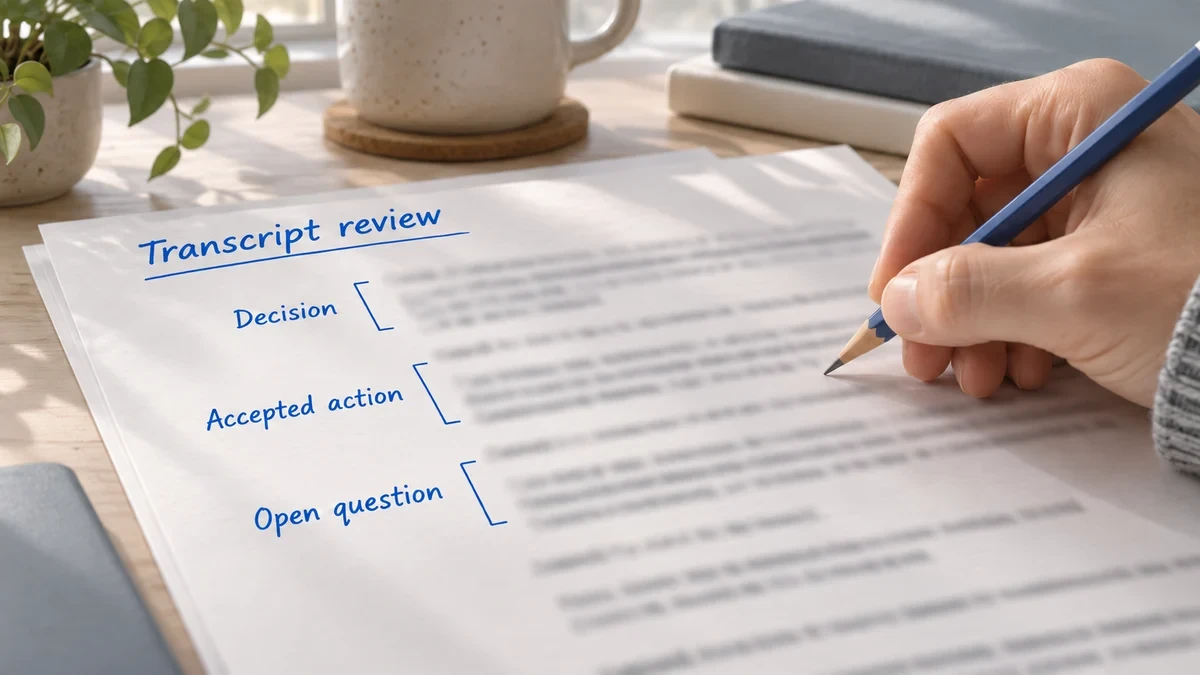
Ask the AI meeting summarizer for three groups. A decision records an outcome the team agreed to. An action describes work someone accepted. An open question captures something the team still needs to settle, even if several people sounded positive about it.
If your approved tool accepts instructions alongside the transcript, try this prompt:
Use only this transcript. List confirmed decisions, accepted action items, and open questions. For each action, give the deliverable, owner, and due date. Add a timestamp or short source excerpt when available. Mark missing owners or dates “Needs confirmation.” Keep proposals and conditional commitments separate from confirmed actions.
Then skim for anything important the AI left out. For example, if a commitment happened during the final readback, check that it made it into the draft before you move on.
Check what the AI says against what people actually agreed to. An AI action item generator can produce a tidy sentence from an ambiguous exchange. The meeting owner should verify three details before any recap goes out. For more on why a fluent answer can still be wrong, see our guide to AI hallucinations.
Hypothetical example. At a November 10 campaign check-in, the team agreed to keep the current launch date. Maya accepted a checklist task, and Jordan suggested moving the client demo to Friday. Here’s the part of the conversation the reviewer needs:
09:41 · Jordan — Could we review the checklist on November 11? Friday might work for the client demo.
09:48 · Maya — I can send the revised checklist to the project team by November 12.
10:02 · Meeting owner — Let’s keep the launch date. We’ll check with the client about Friday.
The draft AI meeting notes mixed up three details in that short exchange.
|
Check |
AI Draft |
What the Call Supports |
|
Owner |
Jordan will send the checklist. |
Maya said she’d send it. Jordan raised a separate topic. |
|
Deadline |
Send the checklist November 11. |
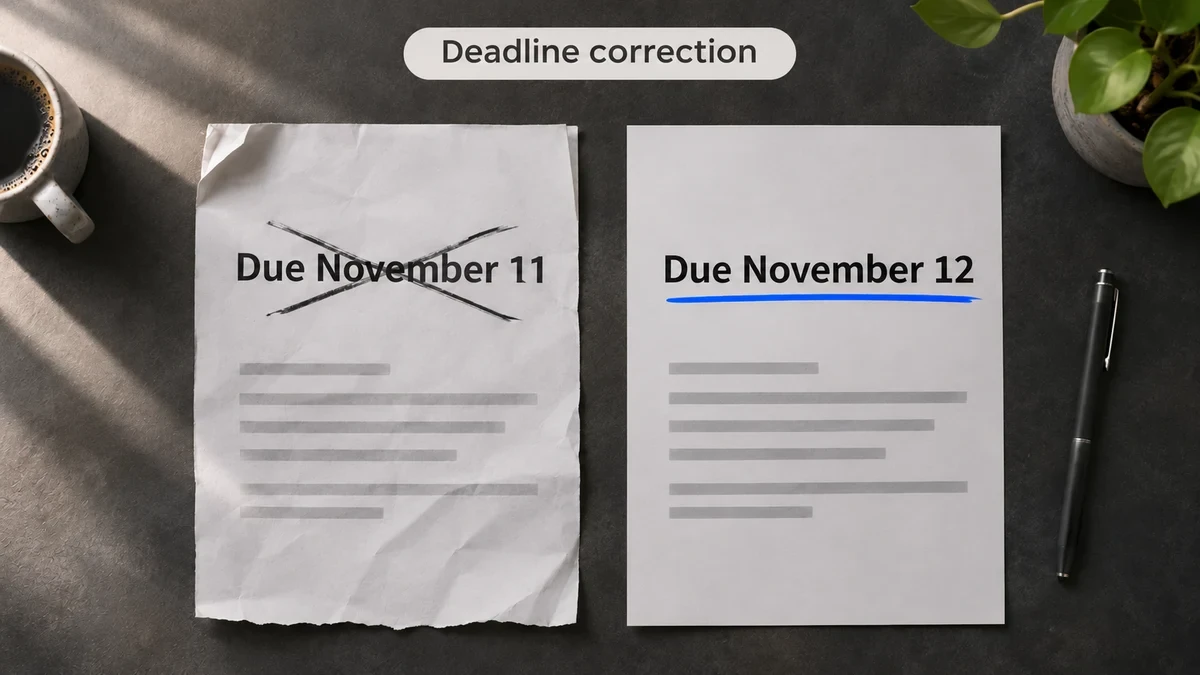
Maya agreed to November 12. November 11 was the suggested internal review date. |
|
Decision |
The client demo moved to Friday. |
Friday was a proposal. The only confirmed decision was to keep the current launch date. |
So the checked recap has one decision, one task, and one open question about the demo. If the transcript is unclear about a commitment, ask the person directly. Until they confirm it, keep the item open and record who will ask for an answer.
Create or update one task per confirmed deliverable. Give it a verb-led title, one owner, and the agreed due date. In the description, say what counts as done. In Asana, for example, you can assign one person and set the due date.
For the campaign example, the task is Send the revised launch checklist to the project team. Assign it to Maya, set November 12 as the due date, and ask her to include the final checklist link in the task. Search the project first. If a task already tracks this work, update it so the team has one place to check status.
Start with manual transfer. If the same handoff happens every week, meeting follow-up automation can help prepare tasks for review. Keep a person in charge of releasing them, especially when a suggested date or name looks plausible. Our guide to building an AI workflow covers how to define inputs, outputs, and review steps.
Send the short recap once the task links are ready. Include the decisions and open questions in the message so recipients can understand the outcome without opening another document. Then start the next check-in with the items still open.
Copy this template into email or team chat:
[Meeting name] — [Date]
Decisions — [Agreed outcome and any condition]
Action items — [Deliverable] · [Owner] · [Due date] · [Task link]
Open questions — [Question] · [Who will confirm] · [Check-in date]
Next meeting — [Date and time, or “To be scheduled”]
In the campaign follow-up, link to Maya’s checklist task and list the demo timing as open. Suppose the meeting owner confirms afterward that she’ll ask the client by November 11. The open item can then read “Will Friday work for the client demo? · Meeting owner to confirm · Check November 11.” If someone later corrects the checklist deadline, update the task and tell the group in the original thread.
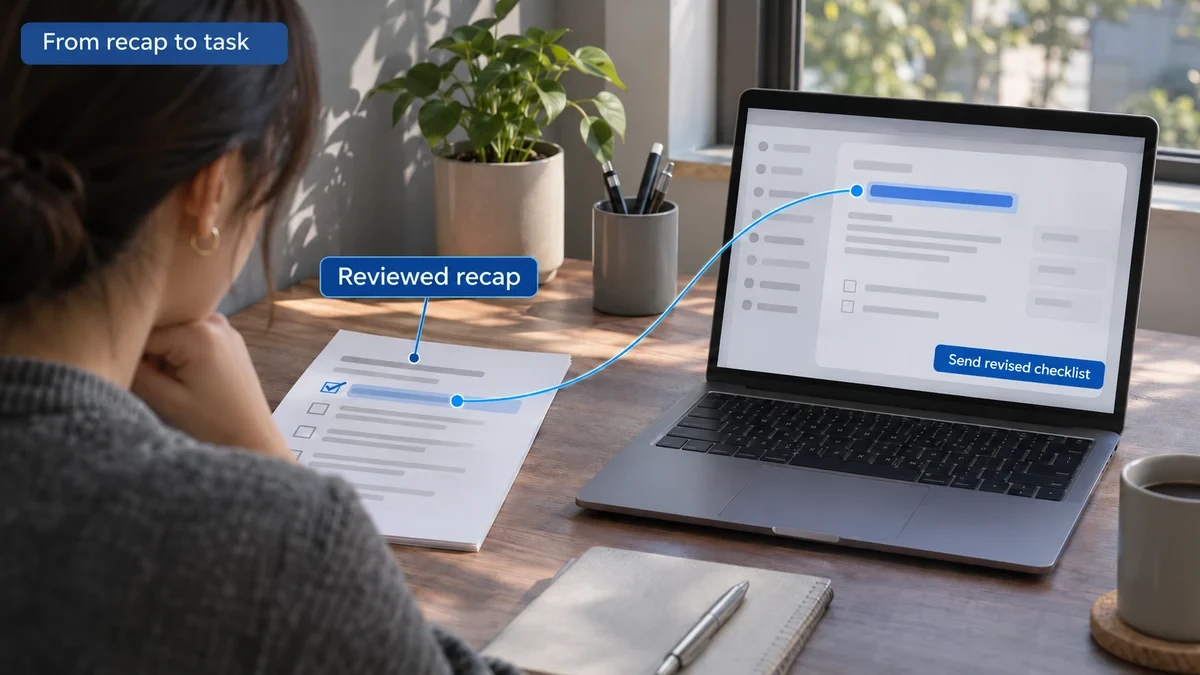
Try the built-in option first if it fits your team’s capture and sharing needs. For a fair check, use the account that usually hosts the meeting and confirm you can access the recap afterward.
|
Platform |
Plan or License to Check |
What to Check Before the Pilot |
|
Microsoft Teams |
Teams Premium or Microsoft 365 Copilot for Intelligent Recap. Microsoft 365 Copilot for recap without a saved transcript, subject to admin policy. |
Check the meeting’s transcription settings. If you use recap without a transcript, arrange a manual readback for details you’ll need to verify. |
|
Zoom |
Zoom Workplace Pro or another eligible paid Workplace plan for Meeting Summary with AI Companion. |
Check the summary recipients and whether your settings let you keep a transcript for review. |
|
Google Meet |
Workspace Business Standard, Business Plus, Enterprise Standard, or Enterprise Plus, or Google AI Pro or Ultra where available. |
Take notes for me creates a Google Doc. It supports one language at a time, so check the meeting language before starting. |
Decide who may capture the discussion, who may see the files, and how long you need to keep them. Tell attendees what you’ll capture and follow your organization’s rules for permission. If your policy calls for manual notes on a sensitive agenda item, stop automated capture before that discussion starts.
During the pilot, keep automated meeting notes with the reviewer where settings allow it. Zoom offers host-only summary sharing, for example. Before sharing a source link, check whether recipients have access to the underlying material. Our meeting tool comparison covers what to look for in consent, sharing, and retention controls.
Measure the time people spend turning AI meeting notes into a checked recap and updated tasks. Include time spent finding the right transcript section, fixing mistakes, and answering follow-up questions. Compare that total with manual follow-up for similar meetings. Track the wait for a recap separately, because a summary that takes an hour to arrive may take only a few minutes to review.
Also count how often someone has to correct an owner, date, or decision after the recap goes out. If the draft takes less time but corrections rise, keep the pilot small and improve the readback or review step. Use the same baseline approach described in our guide to measuring time saved with AI automation.
Pick the simplest setup that gives the reviewer enough evidence to send a reliable recap. A short call with one decision may need only a manual readback, while a recurring project meeting gives you a better way to compare several rounds of follow-up.
|
If You… |
Start With… |
Check Afterward |
|
Host most calls on one approved platform |
Its built-in recap and manual task entry |
Can the reviewer trace each commitment back to the call? |
|
Work across several clients’ meeting platforms |
One shared recap template and approved capture for each client |
Can you produce the same handoff when capture is unavailable? |
|
Need a formal decision record |
Your existing minutes and approval process |
Can an authorized reviewer approve the record before it’s circulated? |
Try AI meeting notes at your next recurring project check-in. Name the reviewer on the agenda, read back the commitments before people leave, and send the checked recap that day. Once the team can repeat that handoff, consider where a reviewed automation step would save the most effort.
Use it to draft notes for the person responsible for the minutes. If your process requires attendance, motions, votes, or approval, keep those fields and the usual review procedure.
Use their written confirmation to update the recap and the task. Note where the commitment came from so readers can distinguish a later agreement from what happened on the call.
State the new decision and identify the earlier one it replaces. Then update any affected tasks and notify the owners so they can stop or redirect work in progress.